Tutorials
The Complete Guide: How To Set up IPTV
Setting up IPTV can seem overwhelming at first, but don't worry – with our step-by-step guide, you'll be up and running in no time. Whether you're a tech-savvy user or a beginner, this guide will walk you through the process of setting up IPTV with ease. From choosing the right IPTV provider to configuring your device, we've got you covered. So grab your remote, get comfortable, and let's get started.
Recommended: IBO Player Pro
Before you pick an app — we recommend IBO Player Pro to all our customers. It is one of the most reliable and stable players available, and it is a one-time activation with no monthly fees. From £7 for a year, or £10 for lifetime.
View IBO Player Pro →IPTV Smarters Pro App (For Smart TVs)

IPTV Smarters is an incredible video streaming player which is developed especially for end-users that want to be provided with the facility to watch live TV, VOD, Series and TV Catchup on their Smart TV. This video player app is easy to use and yet highly efficient with a powerful player, attractive and very impressive layout and most importantly user-friendly.
 Version: 1.0.4
 Compatibility: Compatible With All Devices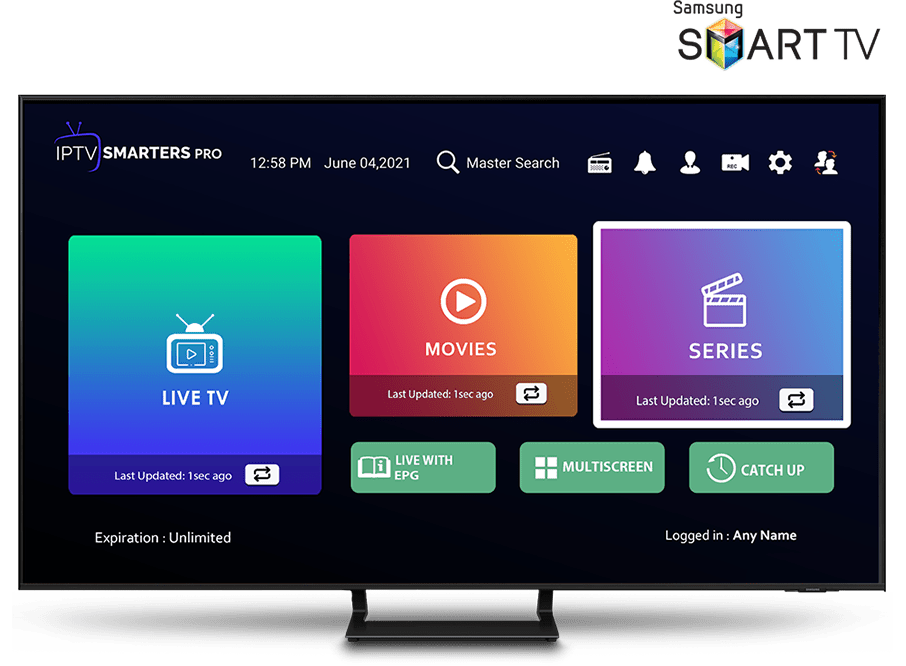
For Samsung Smart TV
- 1Press the Smart Hub button from your remote.
- 2Search for the IPTV Smarters Pro to install.
- 3Log in the Application with your subscription details i.e. Username, Password, Portal URL.
For LG Smart TV
- 1Press the Home button on the remote & go to LG Content Store.
- 2Search for the IPTV Smarters Pro to install.
- 3Log in the Application with your subscription details i.e. Username, Password, Portal URL.
Fire TV Stick
We will first install the Downloader app — this app will help you sideload IPTV Smarters on FireStick (because browser downloads are not allowed).
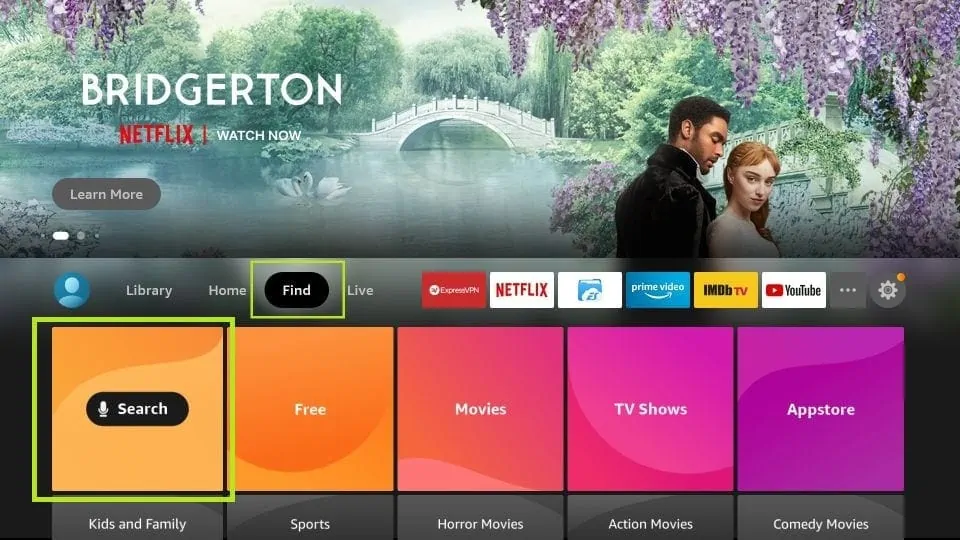
- 1Click the Find > Search option on the home screen of FireStick.
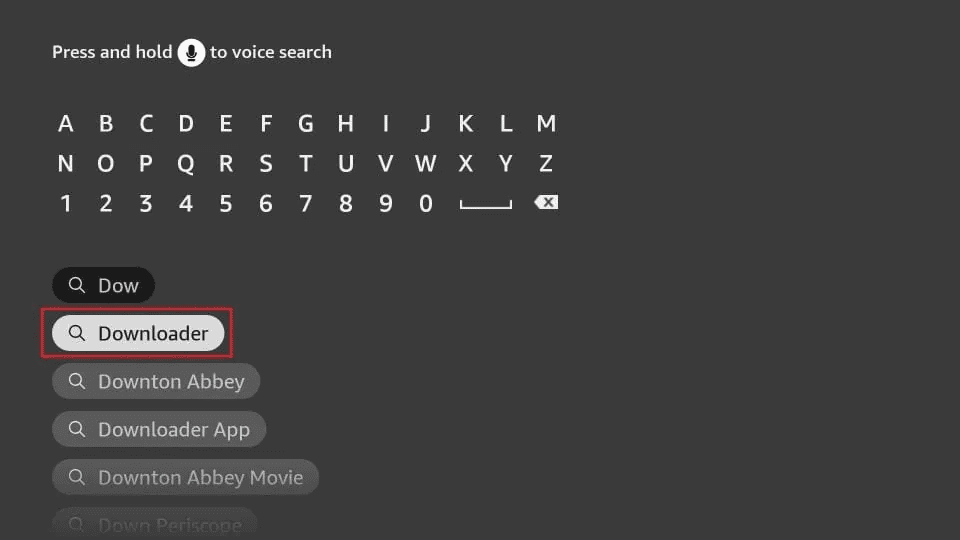
- 2Type the name of the app (which is Downloader) and click the Downloader option when displayed in the search results.
- 3Choose the Downloader icon on the following screen and download and install the app.
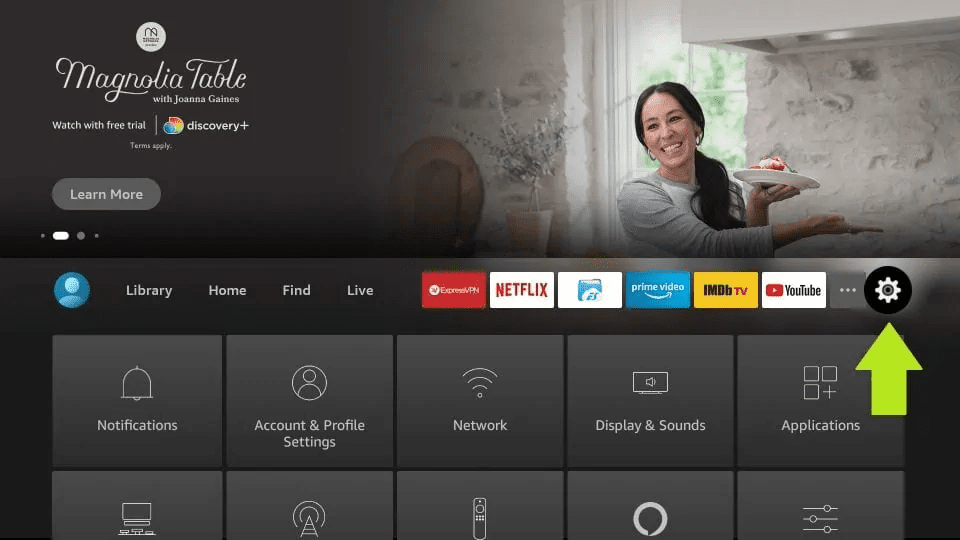
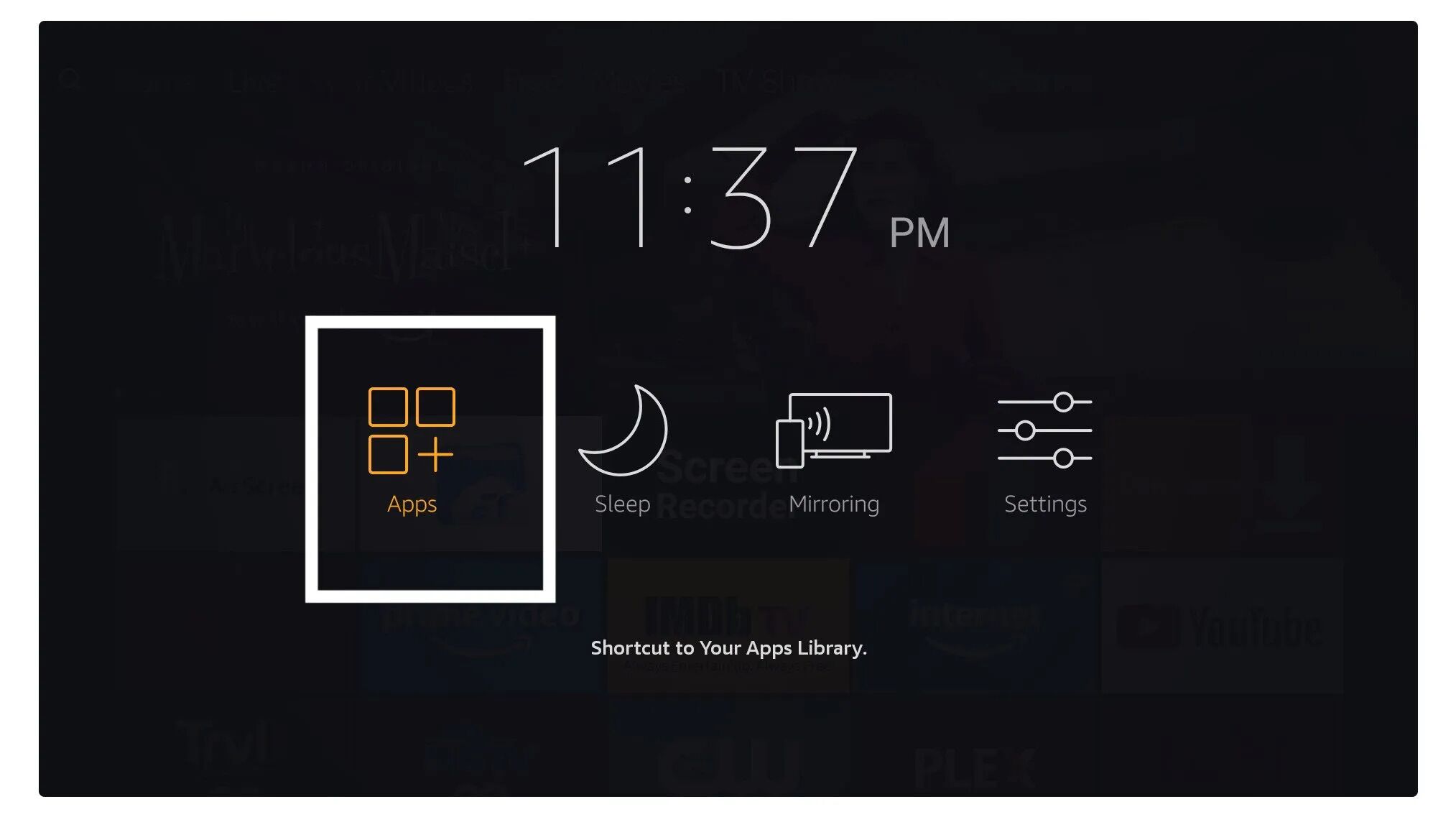
- 4Get back to the home screen after installing. In the menu bar, click Settings.
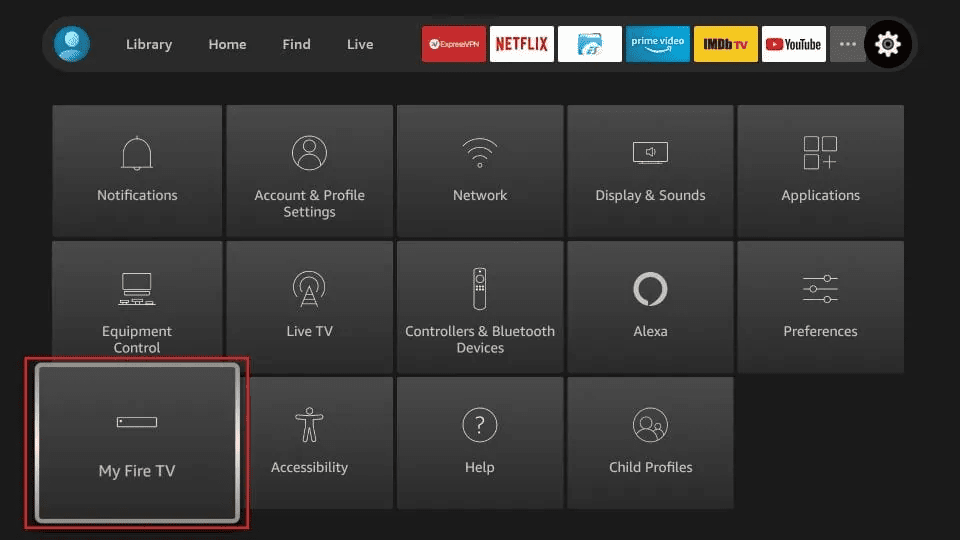
- 5In the Settings, choose the option My Fire TV.
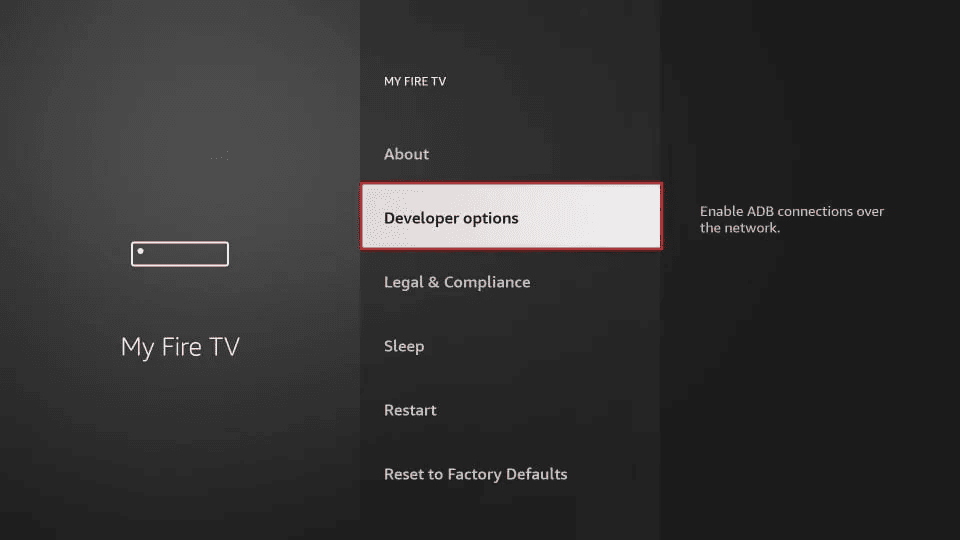
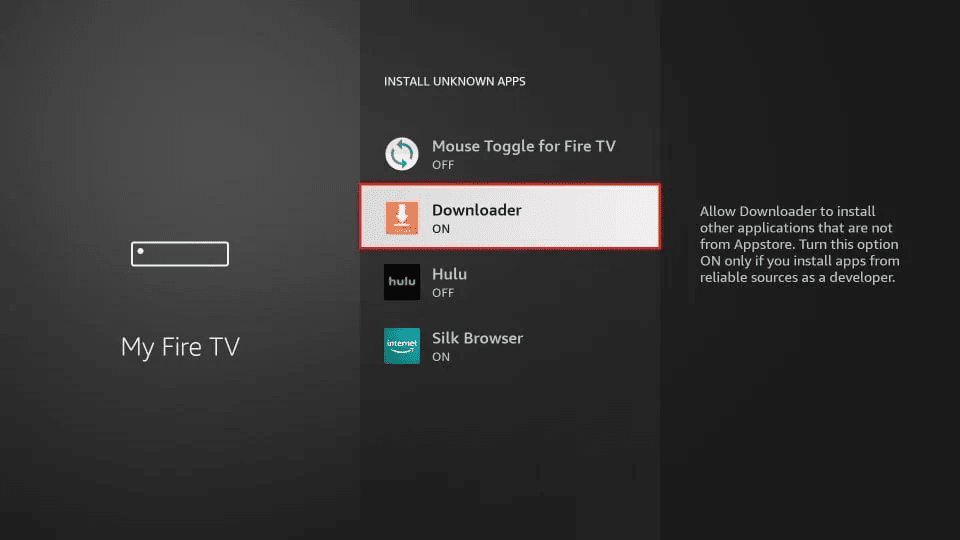
- 6Click Developer Options.
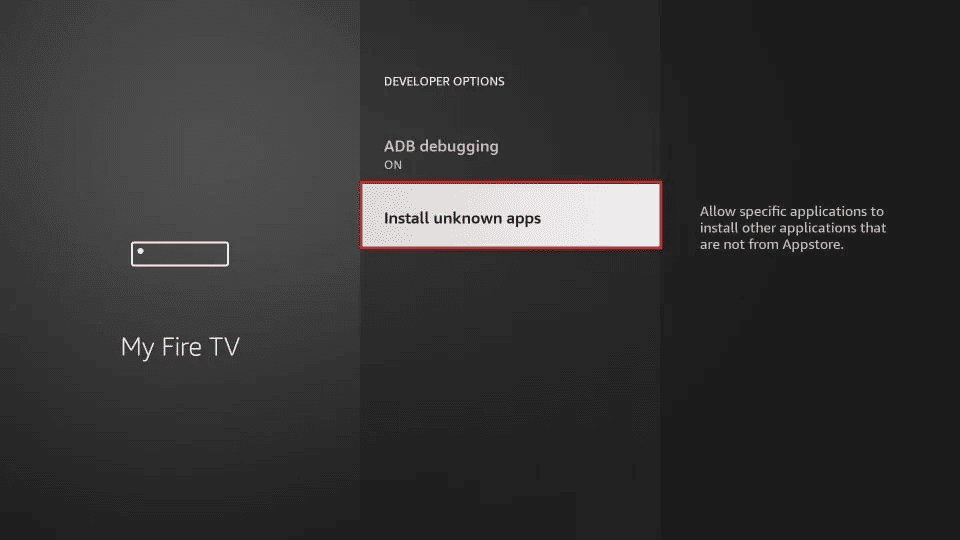
- 7Click Install from unknown apps.
- 8Click Downloader to change the status to ON.
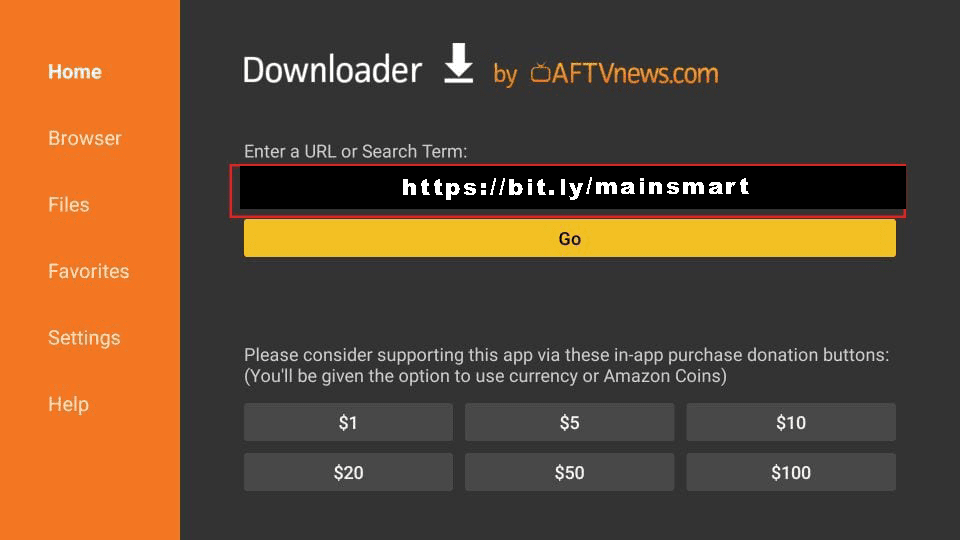
- 9Open the Downloader app. On the Home screen, click the URL textbox where it says 'http://'.
- 10Enter the following path: https://bit.ly/mainsmart and click GO.
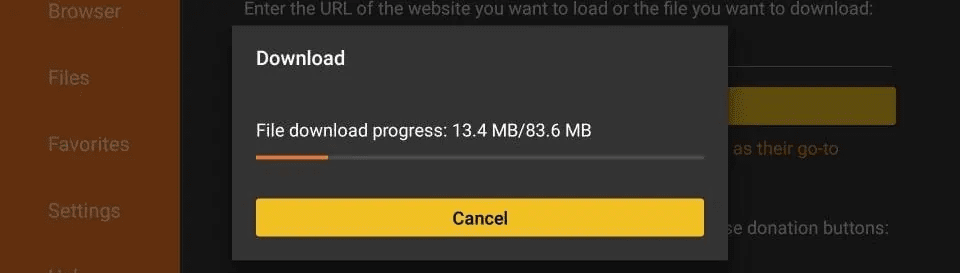
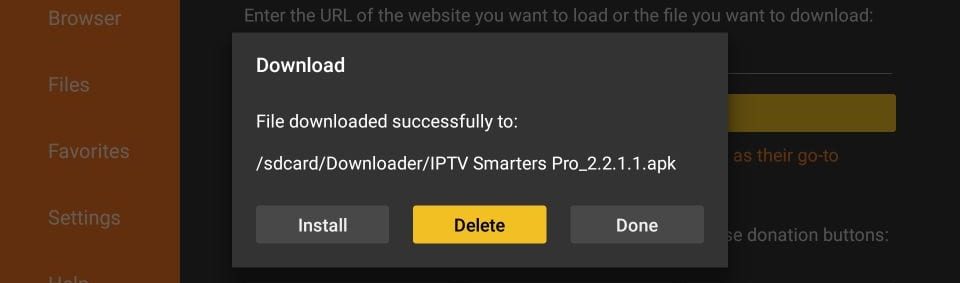
- 11Give it a minute or two until IPTV Smarters is downloaded onto your FireStick device.
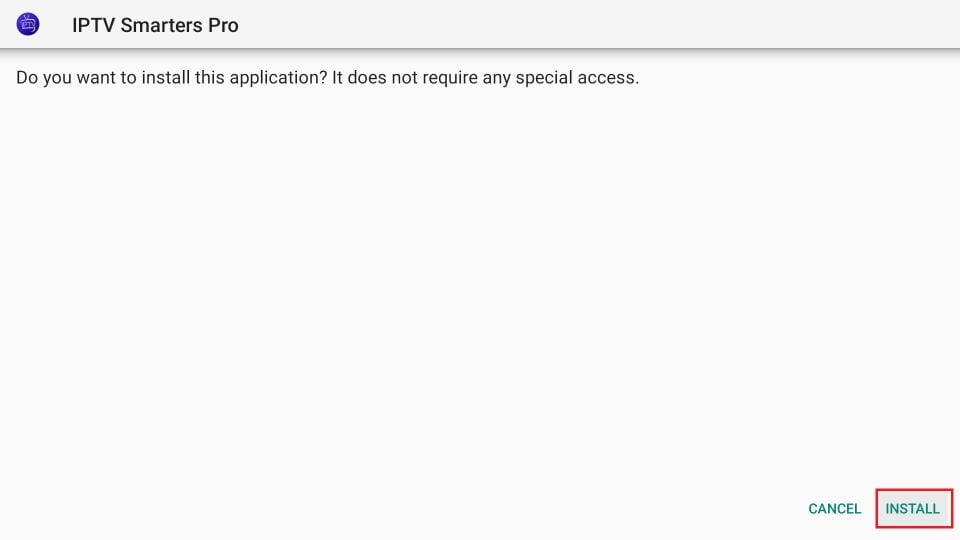
- 12When the download completes, the Downloader app will run the APK file — click Install.
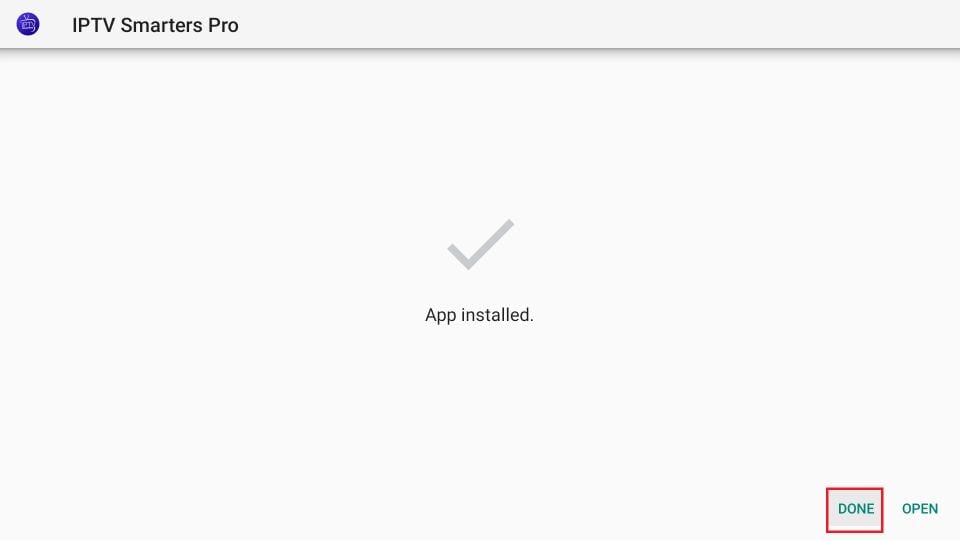
- 13Installation is concluded with the App installed notification. Choose DONE so you can first delete the APK file and save space, then click Delete in Downloader.
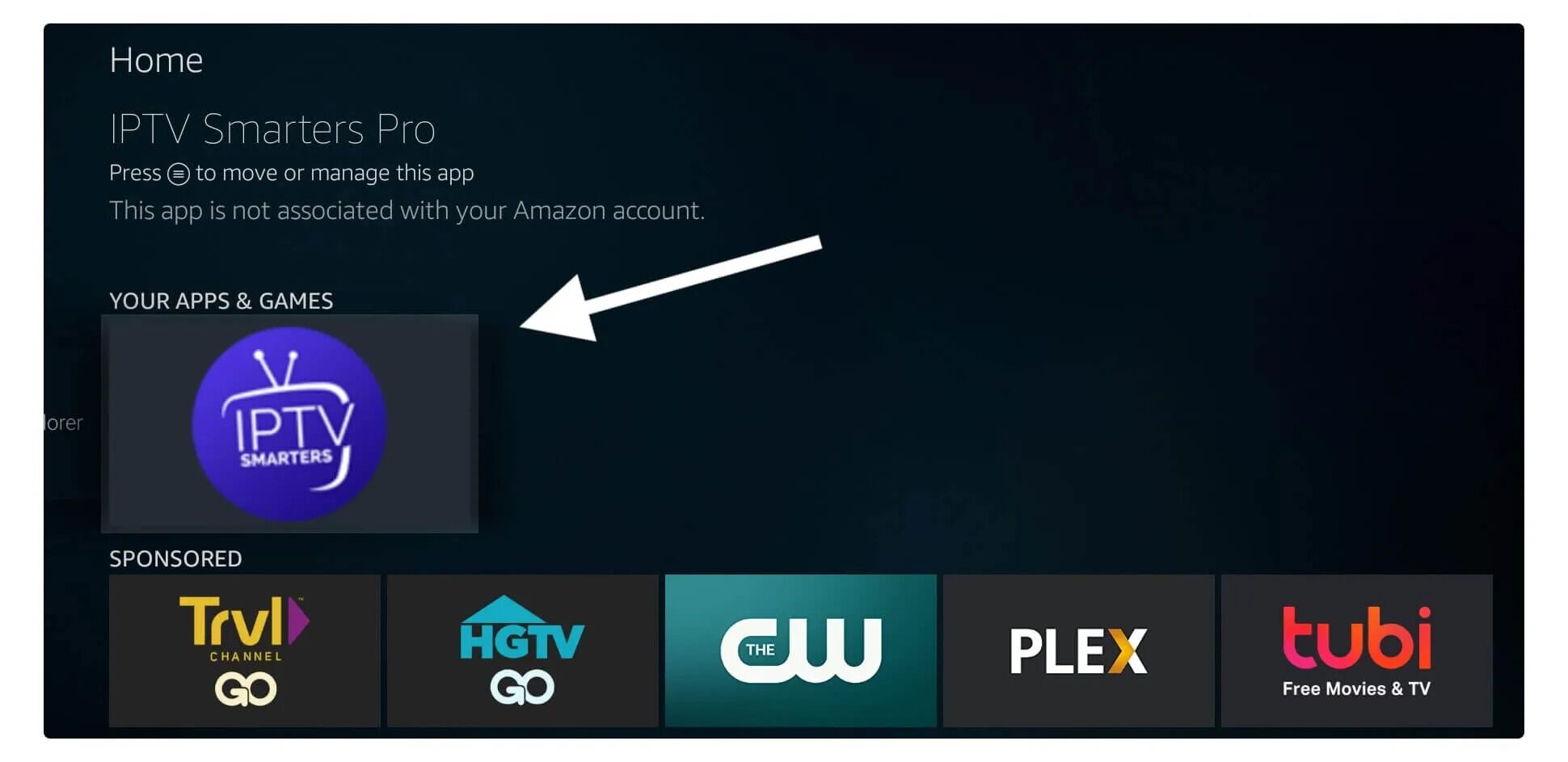
- 14Launch IPTV Smarters on Firestick by going to Your Apps & Channels, scroll down and select the app.
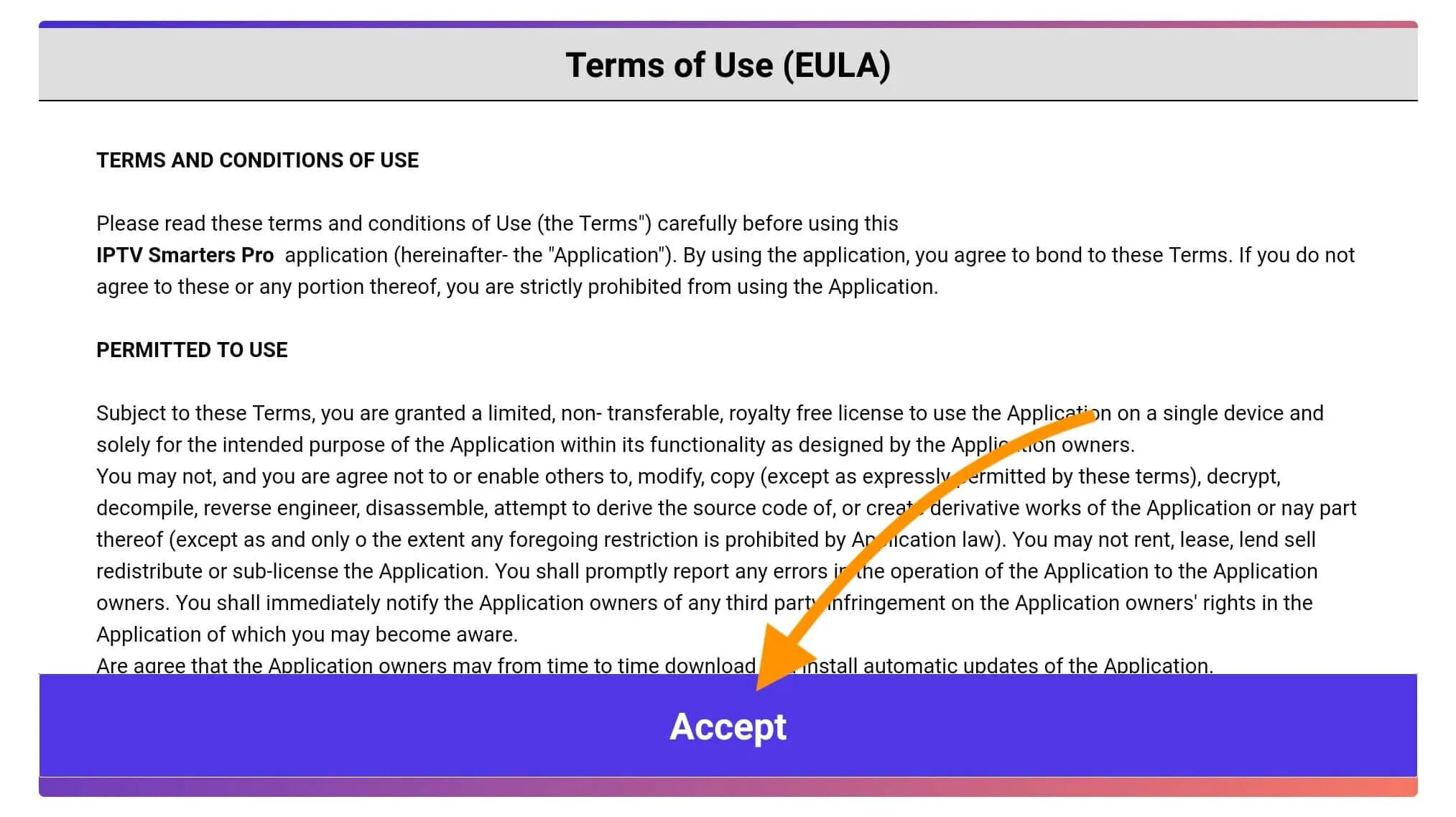
- 15When launching for the first time, agree with the user agreement by clicking Accept.
- 16Click on the Add User button.
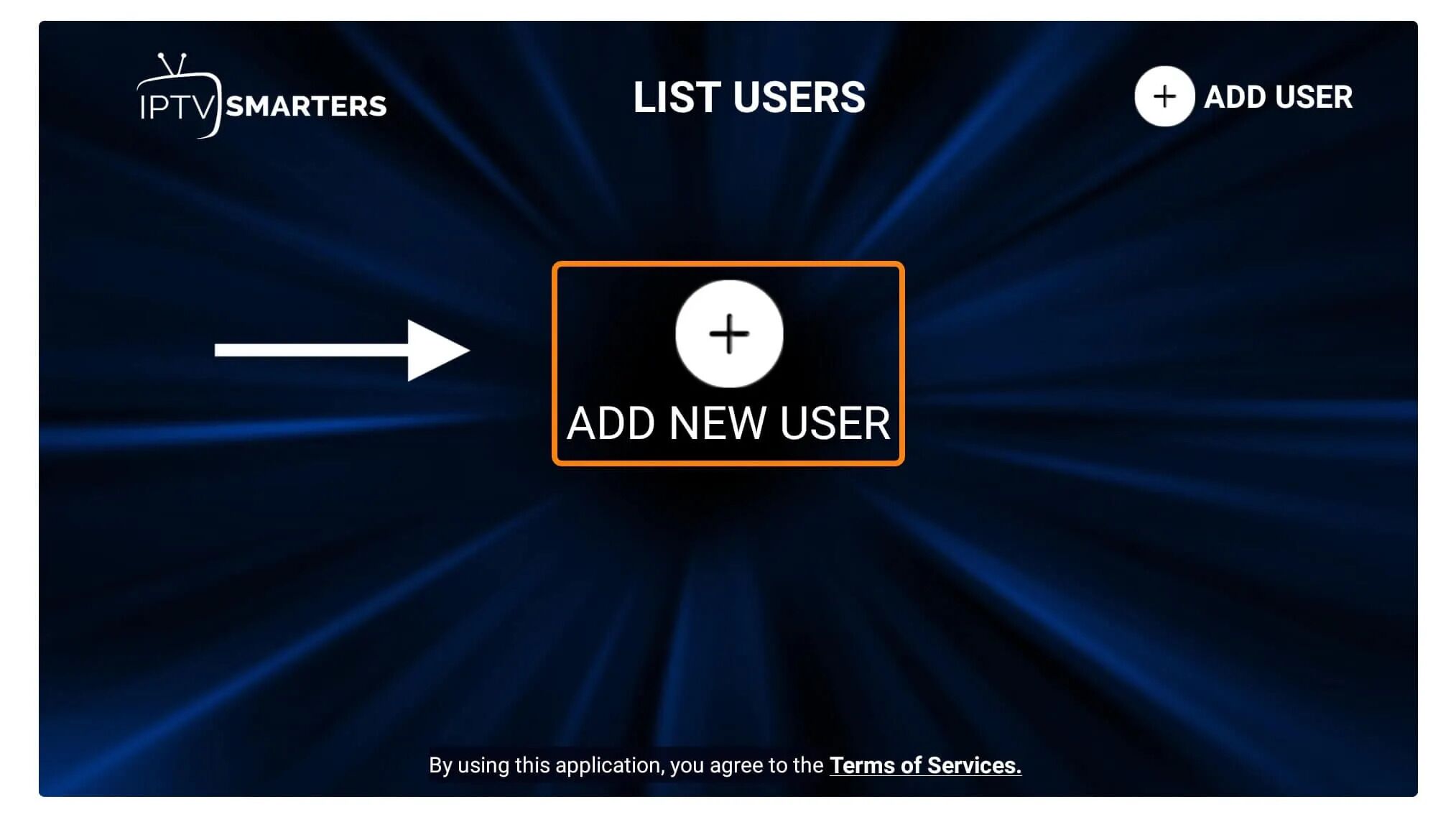
- 17Choose Login with Xtreme Codes API — the fast method.
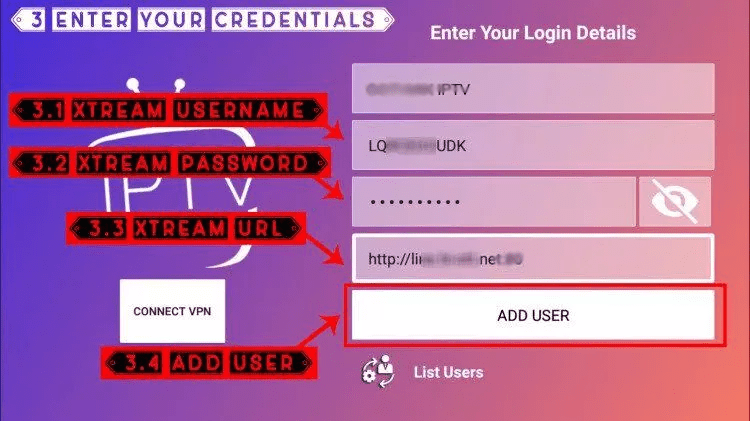
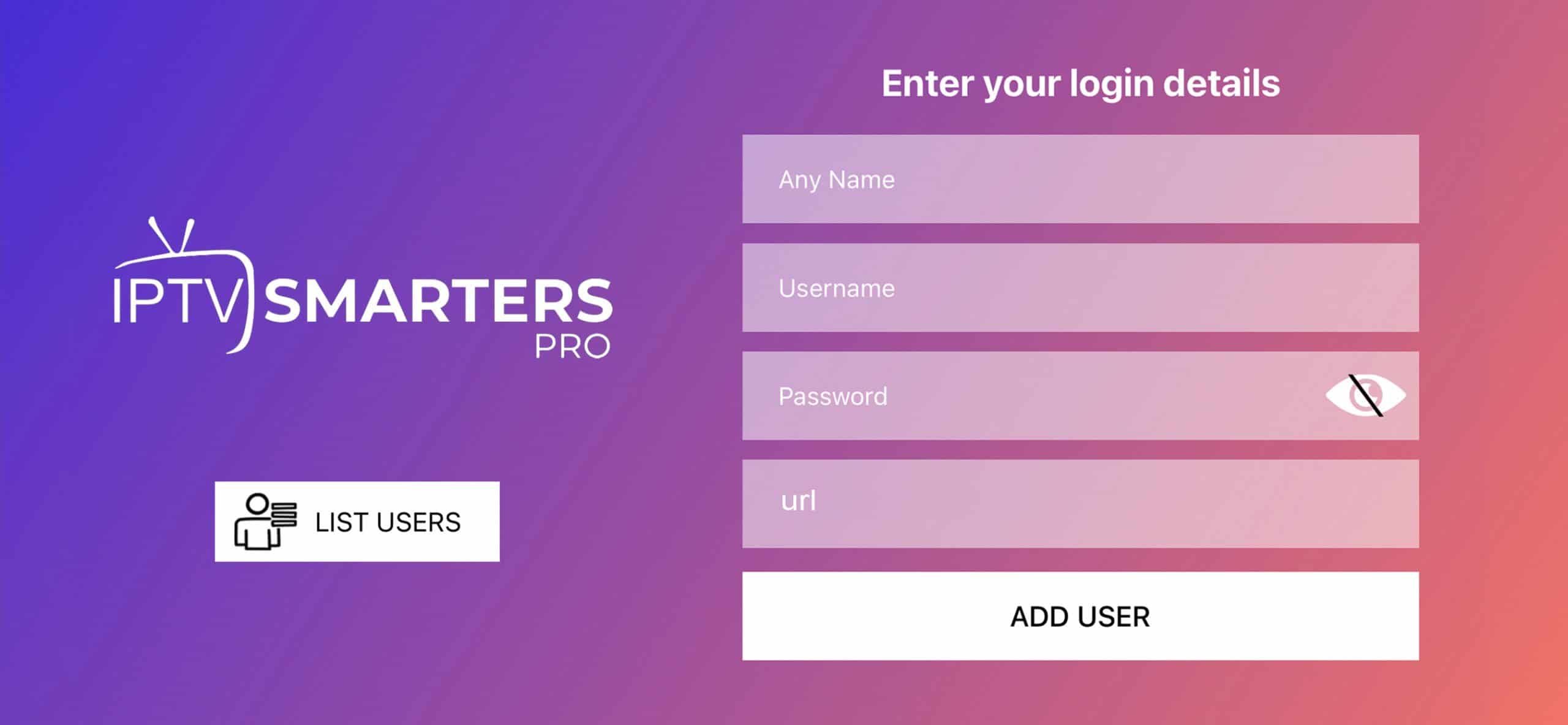
- 18Fill the fields: Any Name (name of your user), Username (provided by us), Password (provided by us), URL (portal URL from your welcome email). Then click Add User.
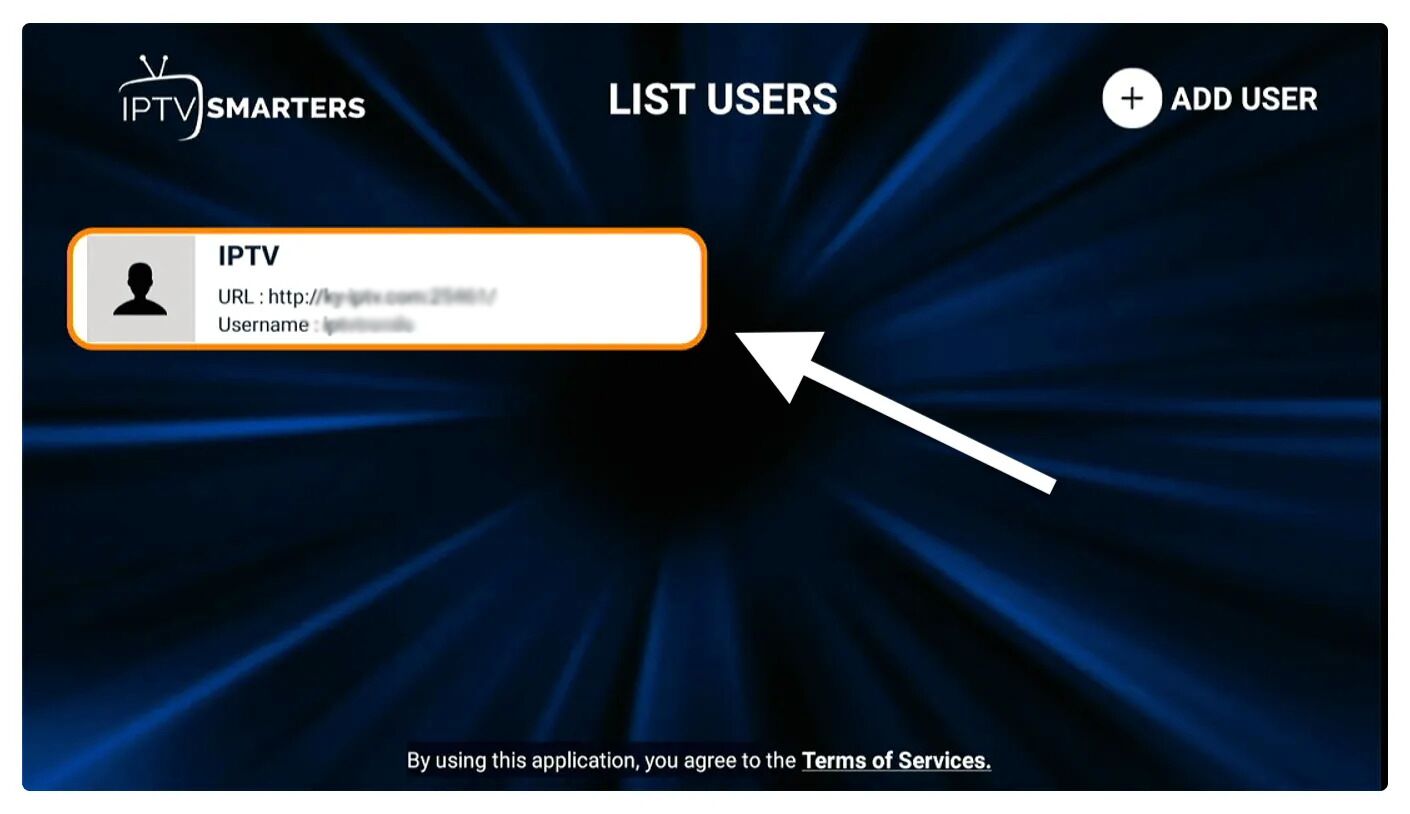
- 19Click the User you created. It shows Downloading Live Channels, Movies, and TV Shows — wait a while until it completes.
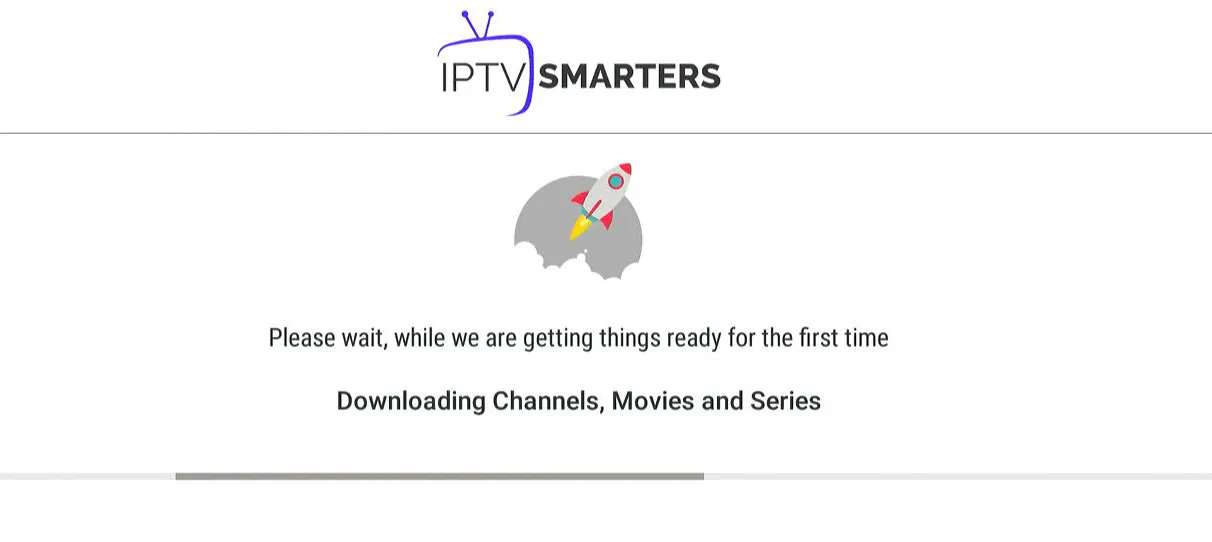
- 20Once completed, a simple interface appears with Live TV, Series, Movies and other options — select any category to show its content.
Android

How to Install XCIPTV Player on Android Devices:
- 1Unlock your Android device and go to Play Store (Google Play).
- 2Browse for XCIPTV Player in the Google Play Store.

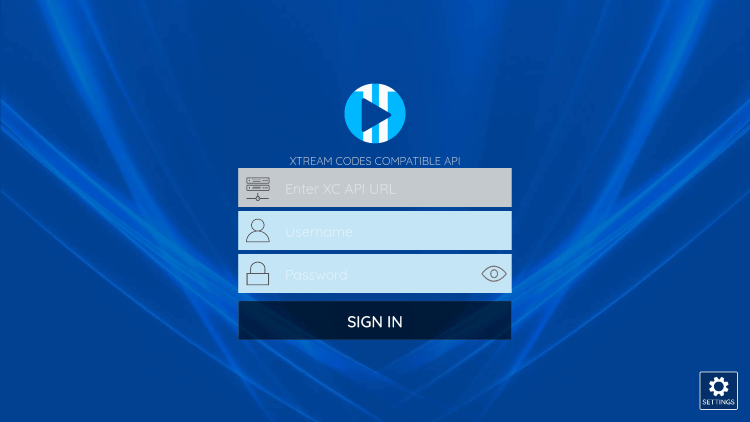
- 3Select Install to install XCIPTV Player on your Android device.
- 4Launch the IPTV player.
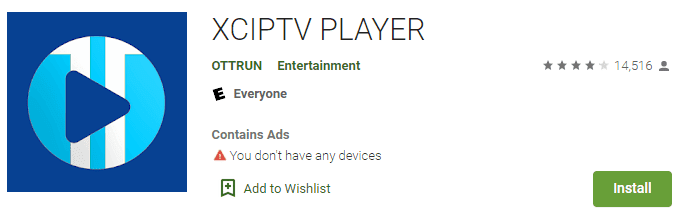
- 5You have successfully installed XCIPTV APK on your device! Enter your IPTV service login credentials and click Sign In when finished.
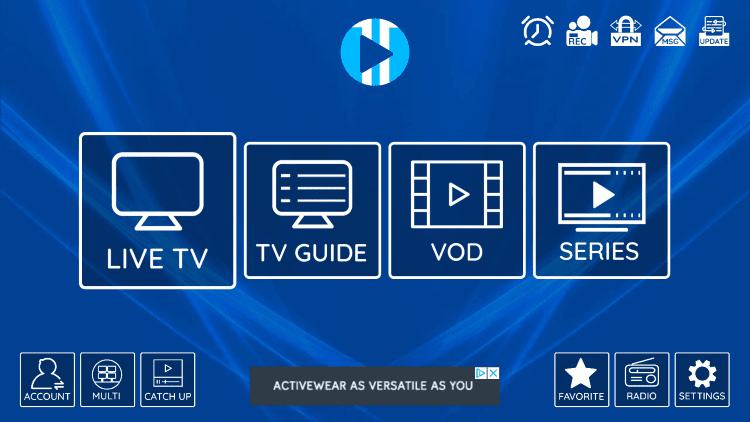
- 6Done! Enjoy.
Apple / iOS

- 1Download Smarters Player Lite from the Apple App Store (search for it on the App Store) and install the app on your iOS device.
- 2Open the app once downloaded and enter the login details that we provided you after you got a subscription with us. Click ADD USER to proceed.
- 3Wait some seconds while it loads.
- 4Click on the Live TV icon.
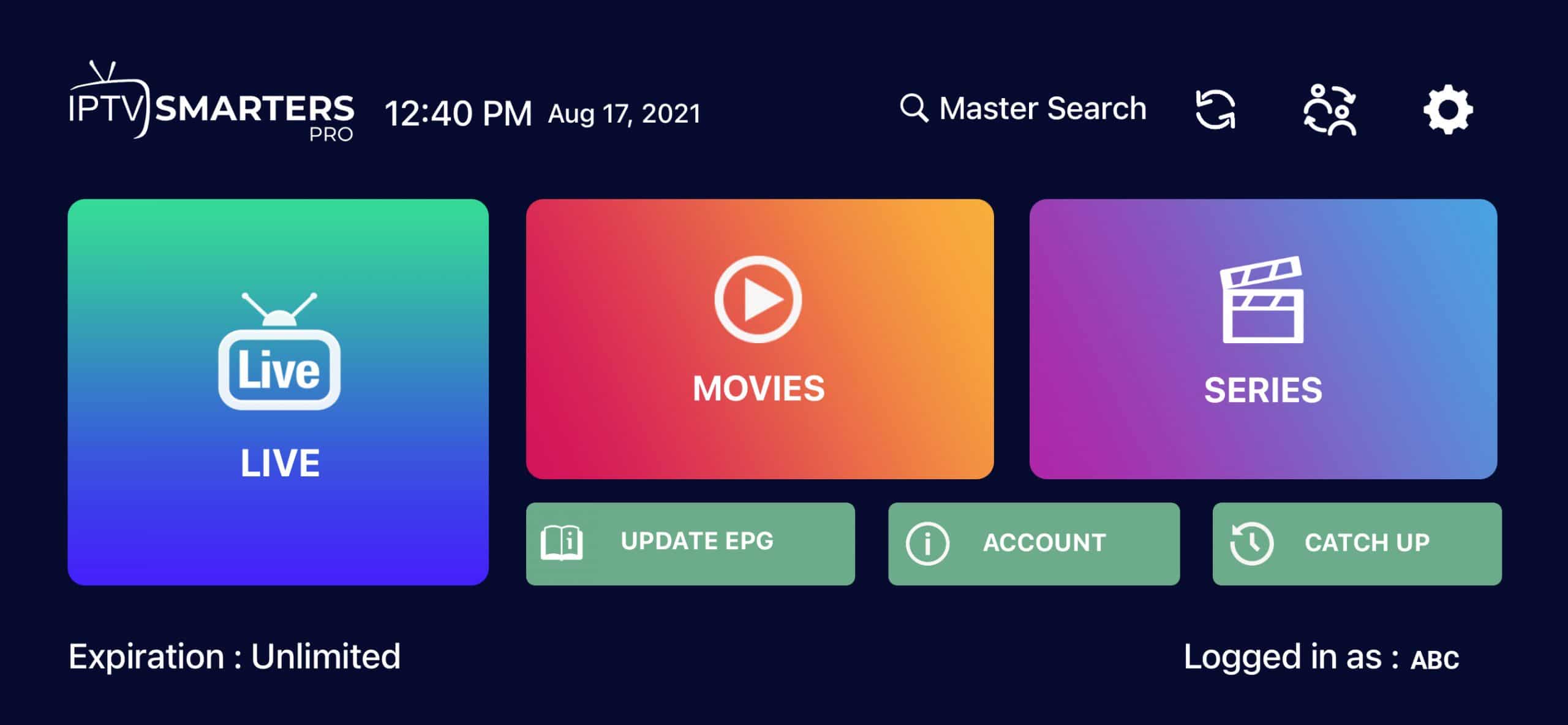
- 5Select the channel group that you want to watch and proceed.
- 6Click on the channel name, then double-click the small screen to turn it into full screen.
- 7To add EPG, no need to add any EPG url — just click Install EPG. Done!
For Apple TV
- 1Browse for XCIPTV Player in the App Store.
- 2Select Install to install XCIPTV Player.
- 3Launch the IPTV player.
- 4Enter your IPTV service login credentials and click Sign In when finished. Done! Enjoy.
MAG Box
This tutorial will guide you through simple and effective steps of installation for your Mag (250/254/256…).
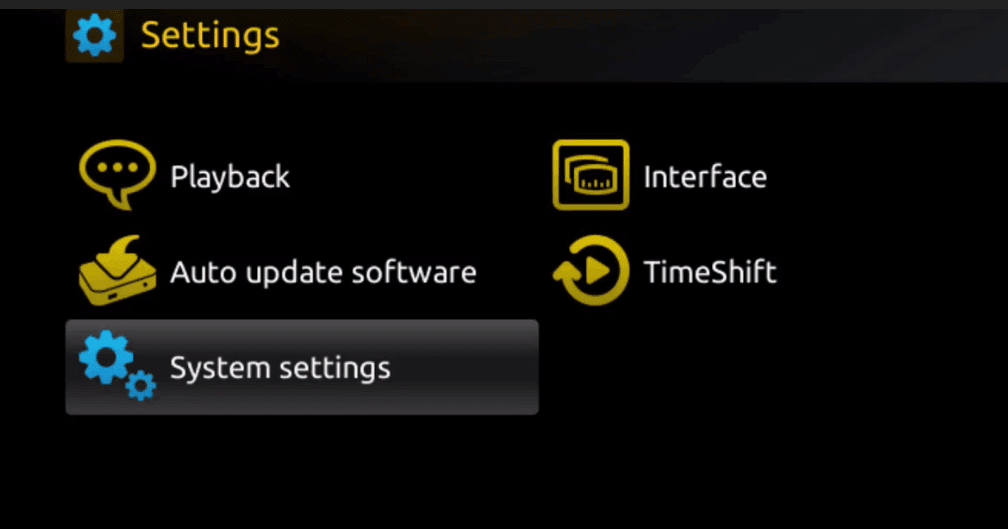
- 1When the box is loaded, the main portal screen appears. Click on 'settings', and press the remote button SETUP/SET.
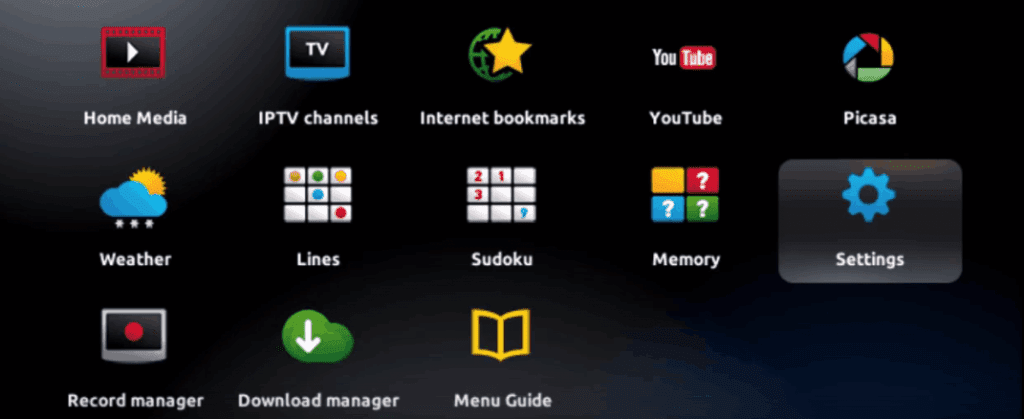
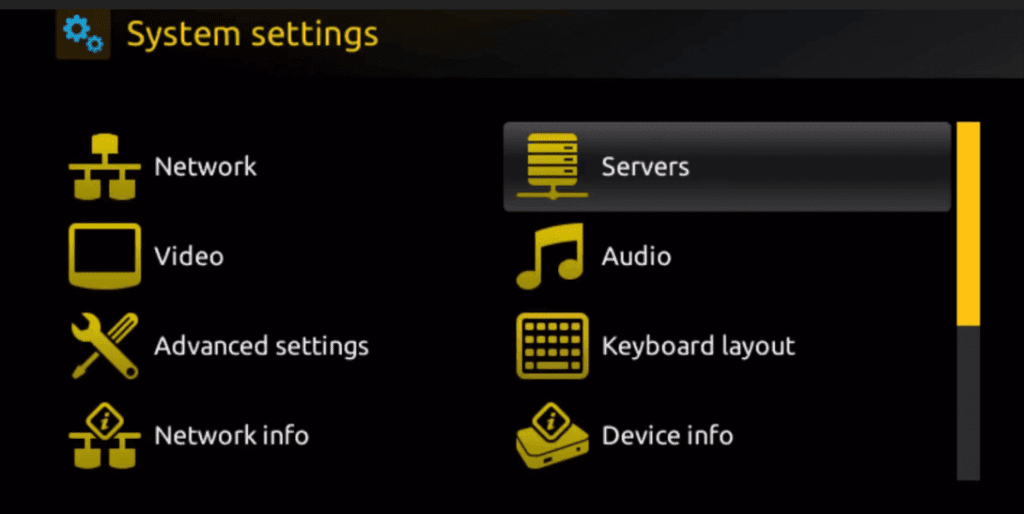
- 2Press on 'System settings' and click on 'Servers'.
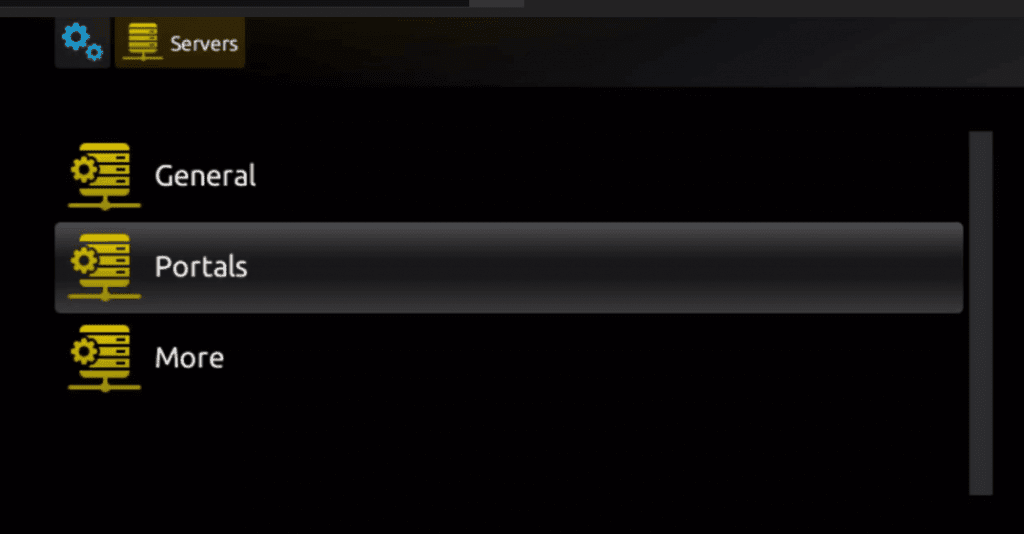
- 3Choose and press option 'Portals'.
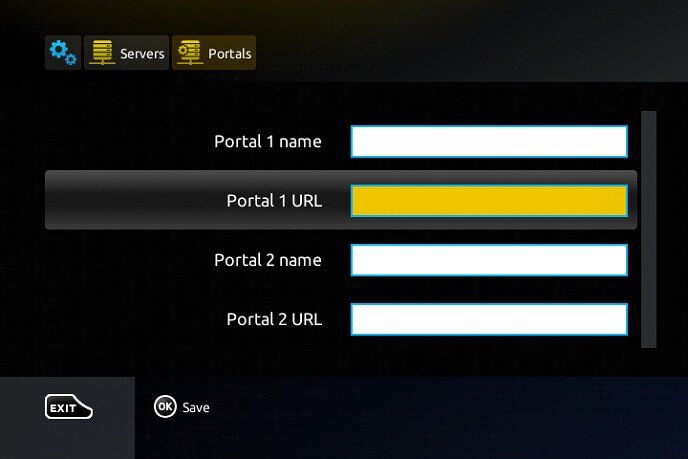
- 4In the 'Portal 1 name' line enter a portal name, and in the 'Portal 1 URL' enter the portal URL.
- 5For activation, send us the MAC address found on the label behind the box with your order — activation is done entirely remotely. Just after activation, we will send you a URL link to put in your PORTAL, as in the photo below.
- 6When you complete, select and click 'OK' to save the changes.
- 7Click 'EXIT' on the remote control after the settings are saved.
- 8Reboot the box. Choose the option 'OK' to make the changes applied.
Microsoft Devices

How to Install IPTV Smarters Pro on Windows:
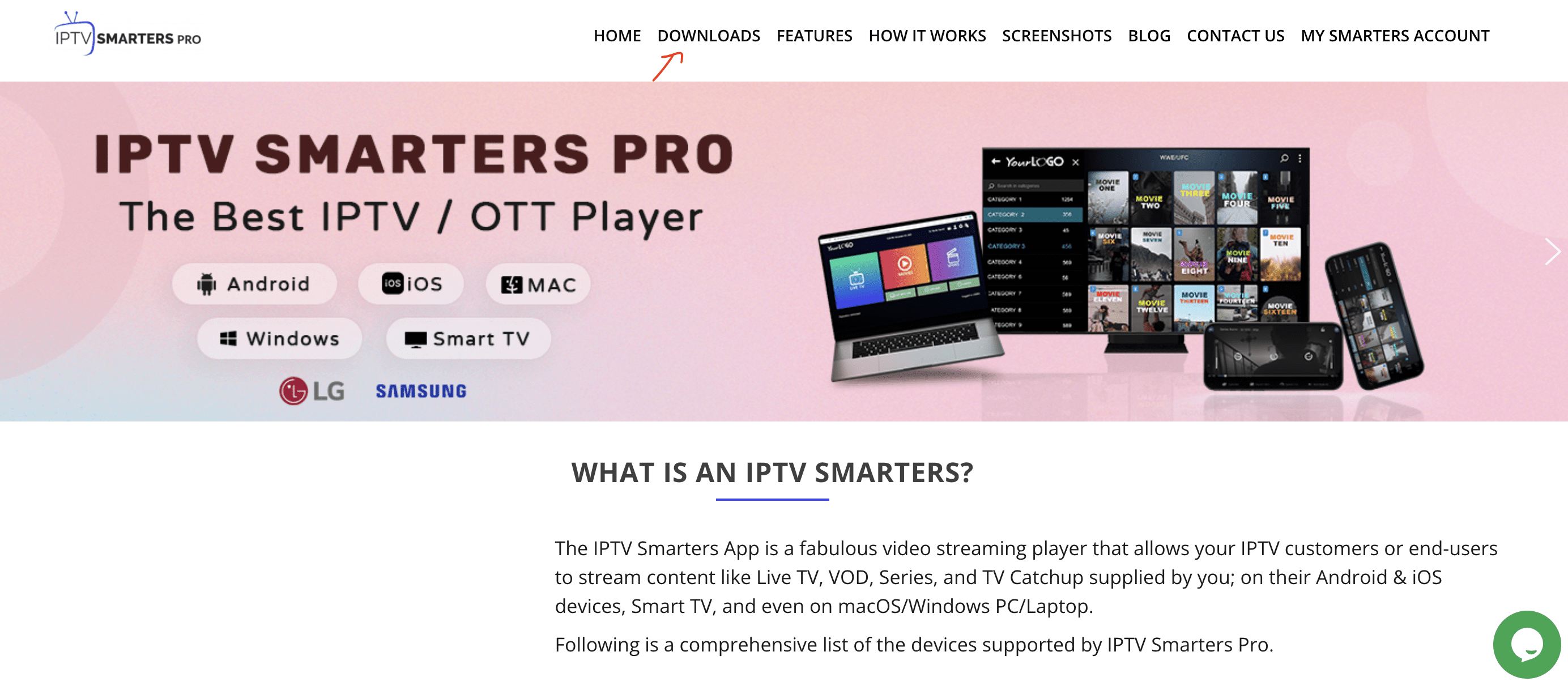
- 1Go to the search engine and type in 'IPTV Smarters Pro', then open the website https://www.iptvsmarters.com
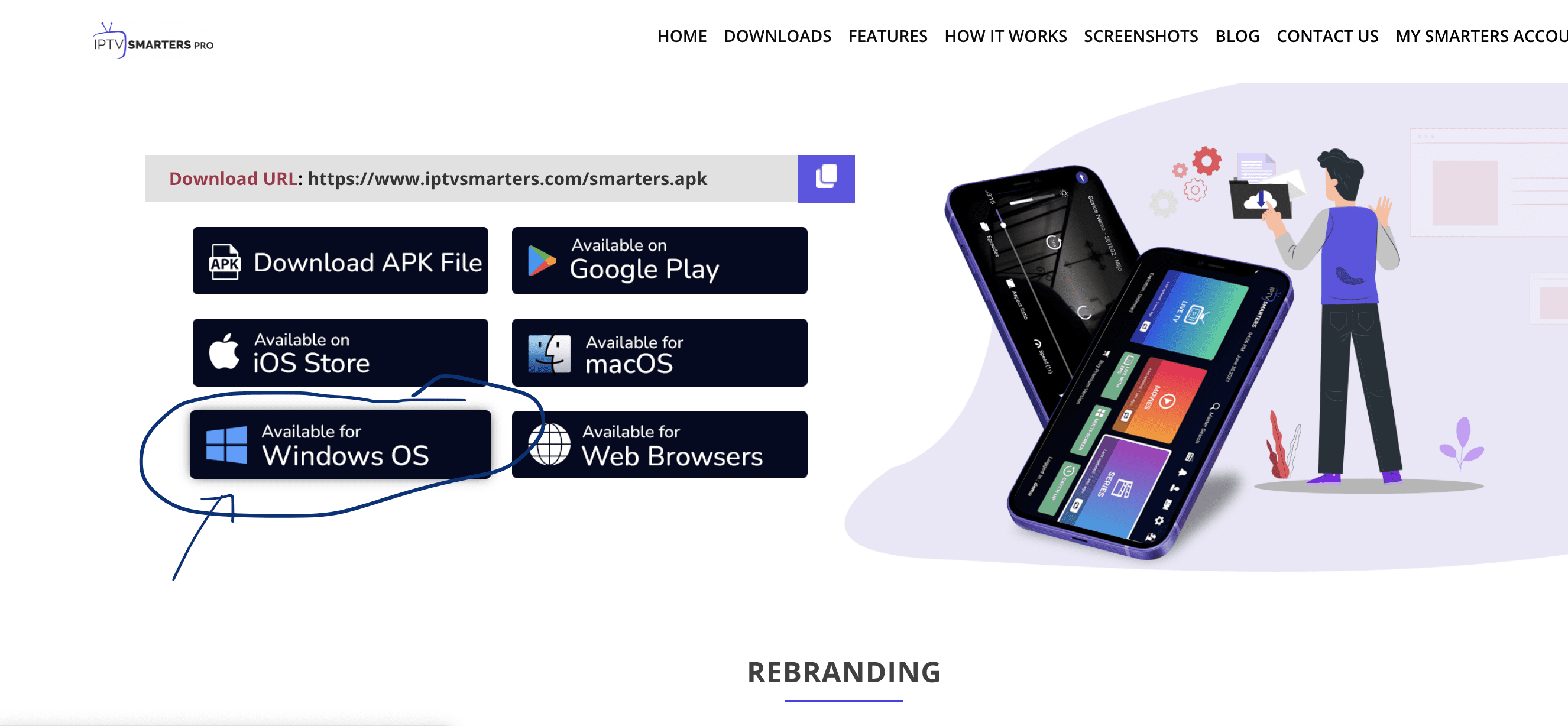
- 2Select Downloads in the Menu and download the new version of IPTV Smarters Pro.
- 3After the file download is complete, click on the executable file.
- 4Windows will ask you for permission to open this file — select 'Yes'.
- 5The file will now begin the installation process. This should take between one and two minutes.
- 6Once the installation is complete, start the IPTV Smarters program. Click Add New User and select Login with Xtream Codes API. Add your login data (username, password and Portal URL) for your IPTV service.
- 7You are now ready to start watching content on IPTV Smarters Pro!
Enigma 2
Instructions for Enigma 2 / Linux installation. You need to install PuTTY to use it.
- 1Go to Settings > Setup > System Network Device > Setup Adapter > Settings and get your IP address (it starts with 192.168…).
- 2Go to your Windows PC and download PuTTY software.
- 3Open PuTTY.
- 4Add the IP address of your device.
- 5Add Port 23.
- 6Click on Open.
- 7Your default login and password are: root
- 8Copy your line (you will get it after you order your subscription): wget -O /etc/enigma2/iptv.sh "your m3u link" && chmod 777 /etc/enigma2/iptv.sh && /etc/enigma2/iptv.sh
- 9RIGHT CLICK the mouse button after you enter your line, then press ENTER.
- 10Type reboot and your device will restart.
Need help with setup?
Our support team is available 24/7 to walk you through any device setup.
Contact Us